Workspace guide01 / 06
Supply chain security / Workspace guide
Assess supplier software. Inspect the code.
Use AI binary assessment when inventory and vulnerability matches need deeper investigation. Inspect the code, review findings, and save corrections.
Agent AnalysisWindows driver
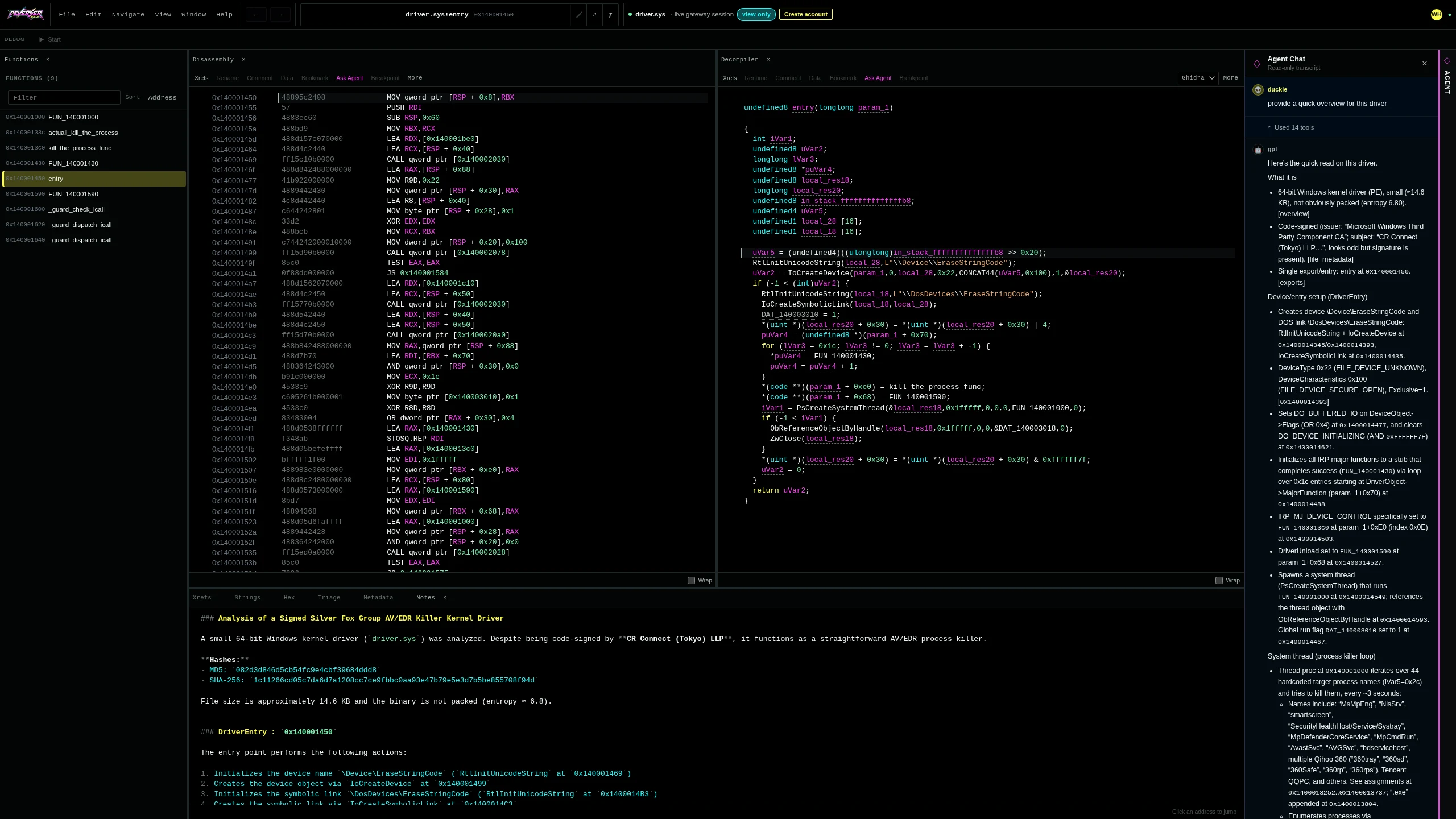 Read the agent's findings alongside the code it inspected. Select the screenshot to view it full size.
Binary analysisSaved stateHuman reviewMCP agent access
The investigation02 / 06
Supply chain workflow
From intake to reporting.
Identify components, verify SBOMs, and investigate security findings. Monitor disclosed vulnerabilities and supplier changes across versions.
01Component identification
Inventory the components in delivered firmware and binaries.
02SBOM generation and verification
Generate SBOMs and check supplier inventories against the software.
03Continuous vulnerability monitoring
Monitor newly disclosed vulnerabilities affecting identified components.
04Binary security assessment
Investigate suspected weaknesses, injected behavior, and embedded secrets with AI-assisted analysis.
05Version and supplier tracking
Compare deliveries for component changes and regressions.
06EU Cyber Resilience Act reporting
Prepare SBOMs, findings, and remediation records for review.
Binary assessment example
Trace a network connection.
Task: trace how an ELF binary connects to an embedded network endpoint.
Available now03 / 06
Available now
Tools for binary assessment.
Agents inspect code, follow references, and record findings. Analysts review and refine the saved analysis.
Static AnalysisCode analysis
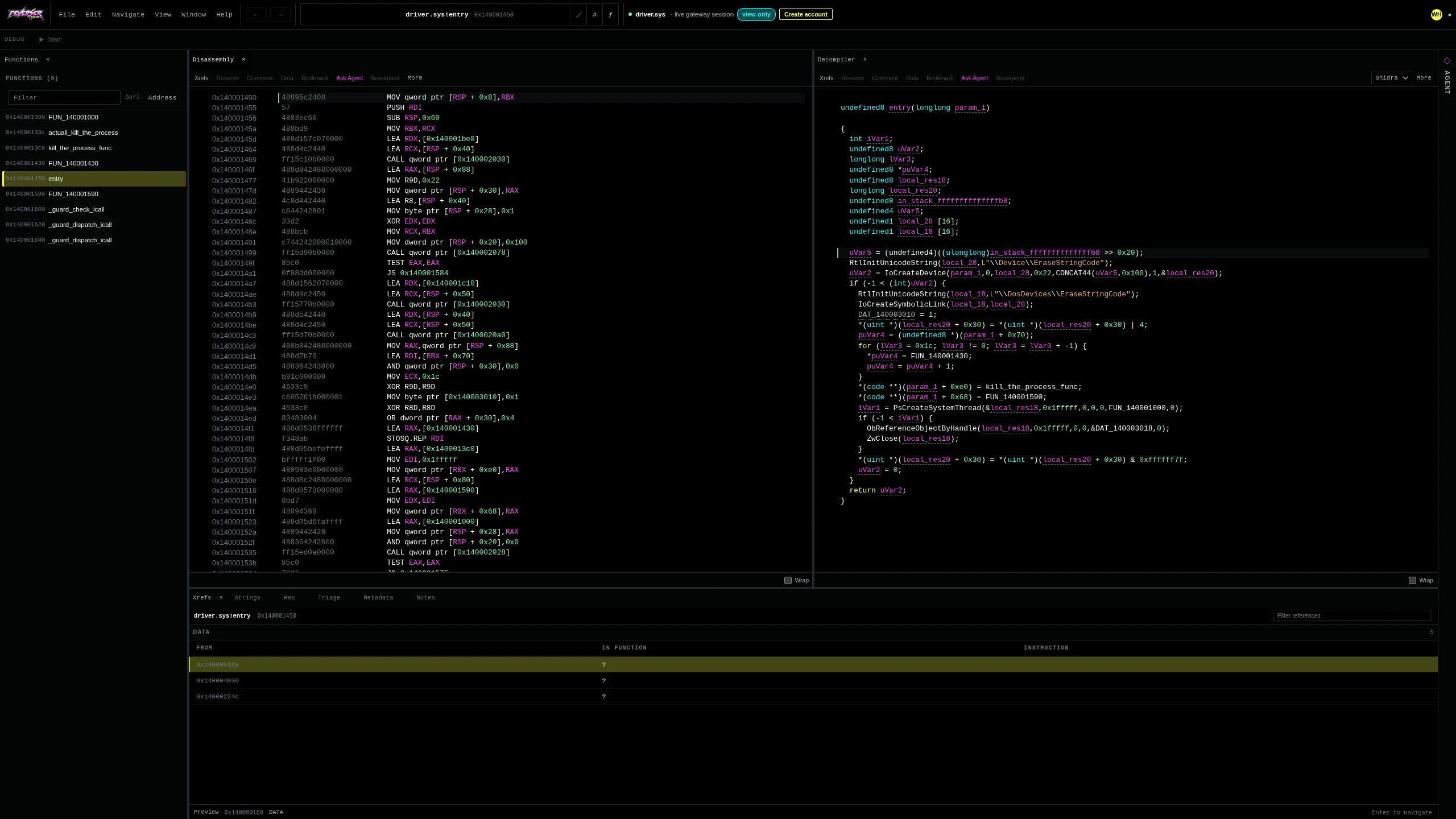 Inspect functions, compare disassembly with decompiled C, and follow cross-references. Select the screenshot to view it full size.
01 / ANALYSIS
Binary analysis tools
Decompilation and disassembly with graphs, symbols, strings, cross-references, hex, notes, and findings.
Analysis. Decompilation, disassembly, graphs, symbols, strings, cross-references, hex, notes, and findings.
Agents. Use a built-in agent or connect through MCP to use session tools within your permissions.
State. Sessions preserve analysis, notes, findings, and attributed activity for humans and agents.
Runtime. Where enabled, isolated Linux x86-64 ELF debugging exposes execution, registers, memory, breakpoints, and terminal I/O.
AnalysisCode, symbols, types, and notes
One saved investigation
Agent workFindings and attributed activity
Evidence you can review
Human reviewCorrections made beside the code
Continue from the updated state
Start analyzing04 / 06
Deeper binary assessment
Inspect. Investigate. Review.
Open an authorized binary in the analysis workspace. Assign a focused task to an agent and review the code behind its findings.
Set up the session
Open a binary and scope the task
- Open an authorized binary workspace
- Use a built-in agent or connect through MCP
- Continue the saved analysis
- Ask the agent to investigate a specific behavior
- Follow tool activity and findings live
Review the work
Check the evidence and continue
- Open the functions behind a finding
- Check code, references, and recovered values
- Correct names, types, notes, or findings
- Inspect runtime state where debugging is enabled
- Invite another analyst to review the session
- Continue from the saved investigation
Tools and access05 / 06
How the workspace fits together
Choose your models. Control agent access.
Connect an agent over MCP. Review its work in your browser. Debug supported samples in an isolated runtime when enabled.
Your agentModel + agent
Your model and framework
Your analysis task
MCP
controlled tools
Saved workspaceAnalysis session
Analysis tools
Persistent state
Analyst review
scoped run
Optional live debuggingIsolated debugger
Linux x86-64 ELF
Registers and memory
Breakpoints and stepping
analysis + findings + evidence + correctionsSaved investigation
One session connects agent tools, analyst review, and saved state. Live debugging depends on the sample, account plan, and deployment.
01Data isolation
Workspaces start private. Reverser Space does not use customer binaries or workspace content to train shared models.
02Execution policy
Where enabled, live debugging uses a fresh private VM without permitted network egress. See the security guide for details.
03Human authority
Analysts can review agent activity, correct the shared analysis, take over the debugger, and stop a run.
04Authorized use
Only upload or run samples you own or are explicitly authorized to analyze.
Continue the investigation06 / 06
Team knowledge
Review findings with your team.
Code references and findings stay with the binary. Reopen the assessment for updates and reporting.
01Inspect the evidence
Follow a finding into the function, address, or available runtime state that supports it.
Correct the analysis
Update a name, type, note, or finding in the shared session and redirect the agent.
Continue the work
Reconnect your agent or invite another analyst to inspect the saved code, notes, and findings.
Start analyzing
Explore Reverser Space.
Live debugging: native Linux x86-64 ELF samples, subject to account and deployment availability.
Evidence for review: The EU Cyber Resilience Act pack supports documentation; it does not certify compliance or submit reports.
Need a dedicated deployment? Discuss your sample handling, agent setup, and data requirements with the builder.